
An evergreen topic of many analytics and marketing blogs. A case study for the drawer or a really useful thing? What do Archetix say?
It can be done, BUT without the user’s consent to share their location from the browser it is useless. In the post-GDPR era that is quite a problem, both from the point of view of users’ sensitivity about sharing such data and of finding the right purpose for processing personal data. (We have not yet verified this with a case study, because we have not yet found a client willing to deal with the legal aspects of this problem.) Of course there are also those who claim that this is not processing under GDPR; I will leave that to everyone’s own judgement.
And now in detail, for those interested in the topic.
What Is Geolocation?
Geolocation is a technique used to determine the location of a user or, rather, their device. We can come across geolocation by IP address, geolocation by the WiFi networks within the user’s reach or by mobile phone masts, and of course the most accurate geolocation using GPS.
There are many services on the internet with various kinds of API that offer geolocation by IP. Mostly they work by having a database of IP addresses, for which they record a lot of data, including the probable location of the device using that address. Some examples: https://ipinfo.io/; https://www.geoplugin.com/ ; or https://ipstack.com/.
Geolocation by WiFi or mobile network is offered above all by Google in its Geolocation Maps API, which very recently went through a major change together with the whole Google Maps API.
What Is Visitor Geolocation Good For?
Now you may be wondering: what use is information about a user’s location to me? The most commonly discussed use is to add information about the weather in a given location and then track its influence on buying behaviour. I can also look at the catchment area of my customers, that is, where they actually come from.
It should be realised that analytics tools themselves also do geolocation, e.g. Google Analytics, which by default offers information about the approximate location of the visitor in its interface.
Geolocation and Its Limitations in Czech Conditions
Sounds wonderful, doesn’t it? But it has its big BUTs.
Geolocation by IP is very inaccurate (in a test, for example, one database reported some addresses in Brno and another in Ústí nad Labem, while the device was actually in Plzeň) and without getting the data from the browser with the user’s permission you cannot do anything with it.
As the above shows, in the Czech Republic geolocation by IP is in the end not able to “hit” even the visitor’s region. Of course it will be right in x% of cases, but you have no chance of recognising the cases where it is completely wrong.
In the Czech environment, geolocation by IP fails completely for devices connected through mobile internet. There you will almost certainly get the answer that the user is in Prague.
So What to Do About It?
There is an option to ask the user’s browser where the user is. This is the geolocation function, which uses HTML5 geolocation from Mozilla (more here https://developer.mozilla.org/en-US/docs/Web/API/Geolocation). The availability and compatibility of this function in browsers can be checked here https://caniuse.com/#feat=geolocation. This function is used, for example, by Google Maps and most maps on the internet. Such a page asks the user, on the left side of the address bar, “Allow the page to get my location?” and the user can Allow or Block (it differs by browser). This is, however, possible only on secure pages, and I think it is a pity to talk about the disruption it can bring to the user’s experience (it must be tested on specific cases).
If we imagine it, it will seem very strange to be asked on some blog to give consent to determining my location without any prior warning. Why?
Geolocation and GDPR
Do not take this opinion as a legal analysis but rather as an example of the fair conduct that we stand for at Archetix. If we use the user’s IP, which under certain interpretations of GDPR is personal data, to determine the location of the user or device, which under certain interpretations of GDPR is again personal data, or if not under GDPR then at least quite sensitive data as such, it would be appropriate to inform them about it, or to use the data only at the moment when it makes sense for the user.
A few clever heads at Archetix got together and came up with several possible ideas for solving this problem:
- It could be simple for companies in, say, hospitality or other services: I can offer a map of branches and premises on the website and add a “find the nearest branch” function. If the user uses this function, I perform geolocation, first by the browser and, if they refuse, by IP, and if needed I add the weather data. How to handle this in terms of data protection is a big question, but it is no longer, let us say, a slap in the face
- Similarly for e-shops: I can find the nearest pick-up point, the nearest branch and so on
- For B2B or similar services where I arrange meetings, I can offer users the option of arranging a meeting online together with a route planning function
- Or offer a practically meaningless function, how far the nearest branch is
You probably guess where we are heading. We are working out the main trigger that would launch the location query.
So How to Implement Geolocation and Weather in Web Analytics?
We have already explained what limitations and problems geolocation, a thing that looks very interesting at first glance, brings. If we have not put you off and you want to implement this function on your website, we recommend doing it through Google Tag Manager.
Here we show how to do it:
- We will need one Custom HTML tag, which does everything for us and puts the resulting values into the dataLayer
- A trigger that fires this tag; for our testing purposes All Pages is enough
- We can then send the resulting values, for example, as a Custom Dimension to Google Analytics
Very recently Martin Kašpar introduced his geolocation API. It uses a very interesting method, namely using several sources to determine the location. He talks more about it himself in his post. We therefore decided to use it and to add the option of getting the location from the user’s browser.
The whole script works as follows: if the website is not secure, it goes straight to geolocation by IP, because browser geolocation is not possible there.
If the connection is secure, we first ask the user whether they would be so kind as to tell us their location. If they send us to the devil, we turn to geolocation by IP just as in the first case.
Custom HTML tag – CU.geoWeather
The Custom HTML tag itself looks like this, and we recommend naming it, for example, CU.geoWeather. Into it we put the code you will find here.
As the trigger we use the All Pages already mentioned.
DataLayer variables
Before creating the Event tag we still need to prepare some more variables. Through Custom Variables we borrow the listed variables from the dataLayer.
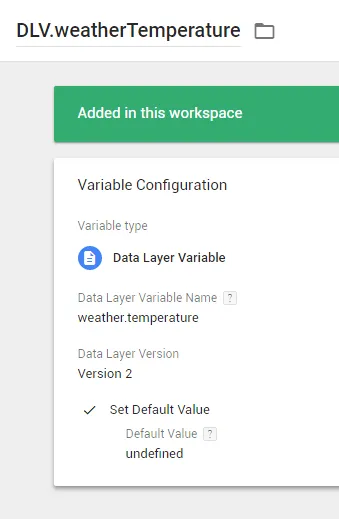
We set up the following Data Layer Variables
DLV.weatherTemperature – weather.temperature
DLV.weatherMain – weather.main
DLV.weatherDescription – weather.description
DLV.weatherStation – weather.station
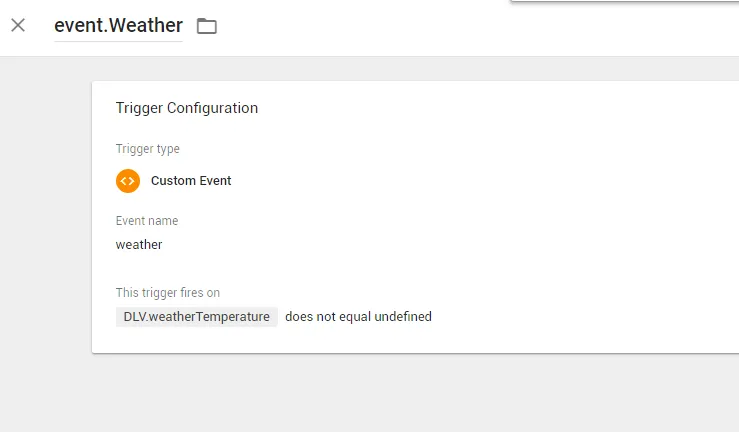
Trigger – event.Weather
The trigger for this tag is event.Weather, which fires when a weather event appears in the dataLayer. We allow ourselves a condition that if the temperature was not found, the trigger does not fire.
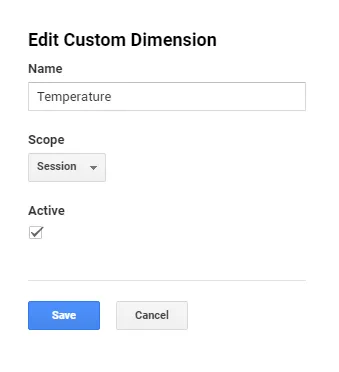
Session Custom Dimension – Temperature
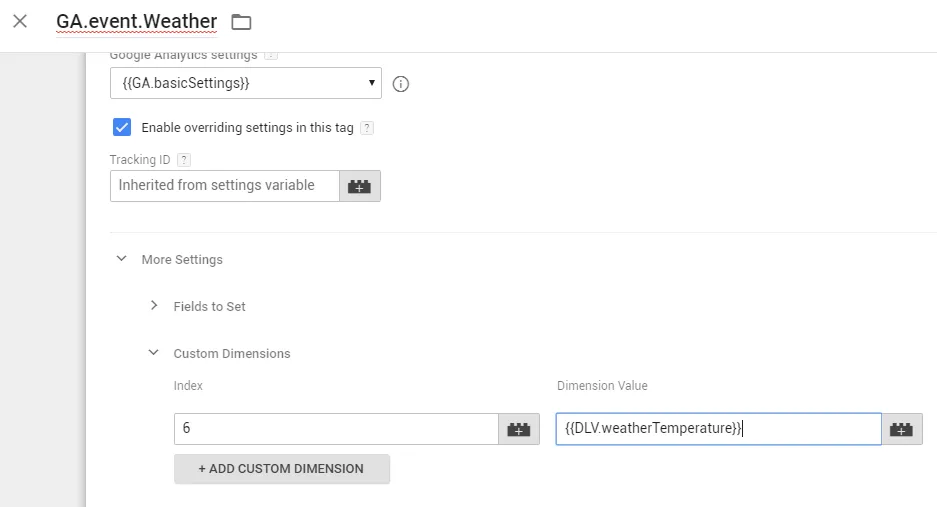
We still need to set up a Custom Dimension in Google Analytics. We set it to the Session type, which retroactively assigns this dimension to the whole visit (so if the geolocation happens deeper in the browsing of the website, this dimension is assigned retroactively to the whole visit).
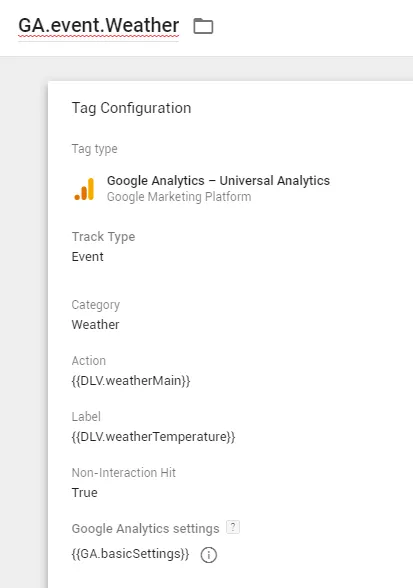
Non-interaction Event tag – GA.event.Weather
Next we use a non-interaction Event tag, which we send with the Custom Dimension set to the Session type, so it is assigned retroactively to the user’s whole visit and at the same time does not affect the Bounce Rate. We name the Event tag, for example, GA.event.Weather.
The setup of the tag itself, which sends the weather information as an event and then the temperature as a Custom Dimension, looks as follows.
Of course, you can use the weather data in other ways too; this is only a model example.
Everything should work and we will see the result in Google Analytics.