
On 19 August 2025 Microsoft Clarity announced a major novelty: integration with Google Consent Mode. This novelty was supposed to launch as early as mid-September. Thanks to it, Clarity can read and respect on its own the user consents that you set up through the cookie banner – source.
Since 31 October 2025 Clarity has started to require valid consent for all visits from the European Economic Area, the United Kingdom and Switzerland. If consent is not set up correctly, some Clarity features (e.g. session recordings, funnel analysis or work with cookies) will not work fully.
What's New and Why Does It Matter?
- Google Consent Mode support: Clarity now automatically recognises and respects the consent settings that you already collect through Consent Mode.
- Automatic behaviour: If the user has cookie storage denied (e.g. analytics_storage = "denied"), Clarity takes this over and does not set cookies.
- No further changes: If you already have Consent Mode implemented on your website, you don't need to change anything – Clarity takes over the signals on its own.
- Full functionality of the tool: Without valid consent you lose part of the functionality and analytical data.
- Compliance with legislation – GDPR and other regulations require clear handling of data and Microsoft Clarity is now even stricter about it
How Does It Work in Practice with Consent Mode?
Consent Mode is a mode in which tools such as Microsoft Clarity or Google Analytics behave according to the consent the user has given. If a visitor refuses cookie storage, Clarity does not set them and works only with limited, anonymous data. If they give consent, the tool works fully. This approach ensures compliance with GDPR and other regulations and at the same time helps companies get quality data without the risk of breaking the rules. You can find more information about connecting Microsoft Clarity with Consent Mode here.
The Consent Mode parameters within Microsoft Clarity work as follows:
- analytics_storage = granted → Clarity works fully, cookies are set, session recordings run.
- analytics_storage = denied → Clarity works only in "cookieless" mode. You get limited data, some features will not be available.
- ad_storage = granted → data can also be shared with Microsoft Ads for retargeting and measurement.
- ad_storage = denied → no data is shared with Microsoft Ads.
An AI Assistant That Saves You Time
One of the biggest benefits of Clarity compared with other tools is the AI assistant. It becomes your personal analyst that can iterate over already filtered data and give you key insights. Instead of going through hundreds of recordings and heatmaps to find a problem, the AI assistant does it for you. It saves you a lot of time and lets you focus on implementing changes that will really move your website forward.
If you are looking for a simple and visually rich tool for analysing user behaviour that also saves you time and helps uncover technical shortcomings, Microsoft Clarity is a great complement to your existing analytics. It will help you understand your visitors better and optimise your website for the maximum conversion rate.
How to Set Up Microsoft Clarity with Consent Mode
Since 31 October 2025 all websites using Clarity must have consent signals correctly implemented. Here is how to proceed:
1. Check Whether You Use Consent Mode
- If you already have Google Consent Mode (GCM) implemented (through Google Tag Manager, the Google tag or a CMP), Clarity takes over the signals automatically.
- If you don't use GCM, you can pass consent in other ways (see step 3 below).
2. Activate Consent Mode in Clarity
Consent Mode is switched on automatically for users from the EU, the UK and Switzerland, but it is good to verify it.
- Log in to Microsoft Clarity.
- Open your project.
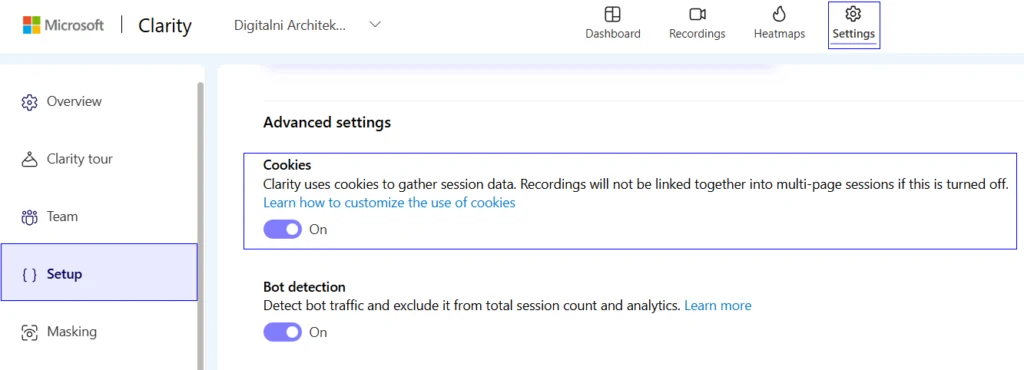
- Go to Settings → Setup.
- Make sure you have automatic cookie handling switched on (Clarity waits for consent).
3. Make Sure You Obtain Consent from Users
You have two options:
- Use a CMP (e.g. CookieYes, OneTrust, Cookiebot): the CMP takes care of displaying the cookie banner and passing the consent to Clarity. Clarity currently works with CookieYes and is working on integration with OneTrust and Cookiebot – source.
- A custom banner: If you use a custom solution, you must pass the consent to Clarity through their Consent API.
Example (the user agrees to both analytics and advertising):
clarity('consent', {
analytics_storage: "granted",
ad_storage: "granted"
});
If the user refuses, use the value denied instead of granted.
4. Pass the Current Consent State
- Clarity needs to know when the user's settings change.
- If the user withdraws consent, Clarity immediately stops using cookies and deletes the existing ones.
If the user withdraws their consent during the visit, you must send Clarity the denied signal.
clarity('consent', {
analytics_storage: "denied",
ad_storage: "denied" });
And at the same time implement the following function, which ensures that Clarity immediately deletes its cookies and stops using them:
clarity('consent','false');
5. Verify That Consent Mode Works
- Open your website in the browser and launch Developer Tools (Ctrl+Shift+I / Cmd+Opt+I) or right-click and choose Inspect.
- Enter into the console:
clarity('metadata', (d, upgrade, consent) => {
console.log('consentStatus:', consent);
}, false, true, true); - The result will show you the current consent state:
"analytics_storage": "granted/denied",
"ad_storage": "granted/denied"
- granted = consent was given
- denied = consent was not given
Test That Clarity Doesn't Set Cookies Without Consent
- Clear your website's cookies.
- Open the website and refuse cookies.
- Check that the _clck and _clsk cookies have not been created in the browser.
- If they are not there, Consent Mode is working correctly.
Summary
Microsoft Clarity is moving towards greater transparency and user privacy. For website owners this means just one thing: if you want Clarity to work fully even after 31 October 2025, you must have the passing of consent correctly implemented.
The good news? If you already use Google Consent Mode, you don't have to do anything – Clarity takes the consent over on its own. If not, it's high time to prepare for it.