

Google has added new features to Looker Studio (formerly Google Data Studio), which is a visualisation tool. The new feature concerns working with custom parameters. They give you another way to make your reports even more interactive, because you can work with user input in real time without having to edit the report itself. Parameters here work as variables, which you may know from programming languages.
So How Do You Do It?
You have several options for working with parameters in Looker Studio. One way is to use them directly in custom calculated fields. As an example we show you the use of a parameter for a quick calculation of different product margins.
For our example let us define, say, 3 variants of product margin: 10%, 30% and 50%. As the source we will use data from the Google Analytics demo account. First we edit our data source. Besides the option to add a field, you now also have the option to add a parameter. So we create a new parameter.
First Variant
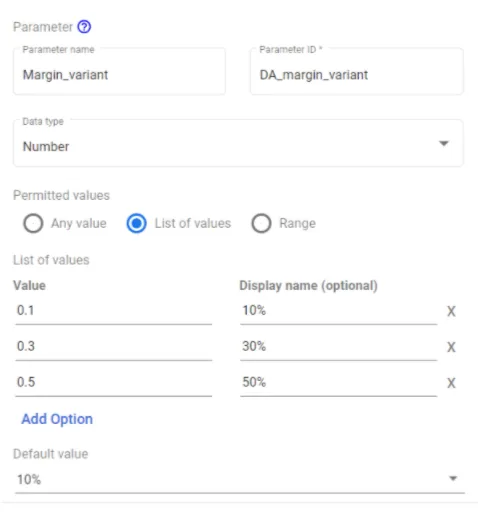
First we name our new parameter, e.g. “Margin_variant”. For our example we choose the type number and the variant “list of values”. We add all three variants of our margin. Because we will be working with the parameter in a later calculation, we choose decimal numbers and put the percentages only in the displayed name. Finally we select the default value of the parameter, in our case 10%. Then we save our new parameter.
Second Variant
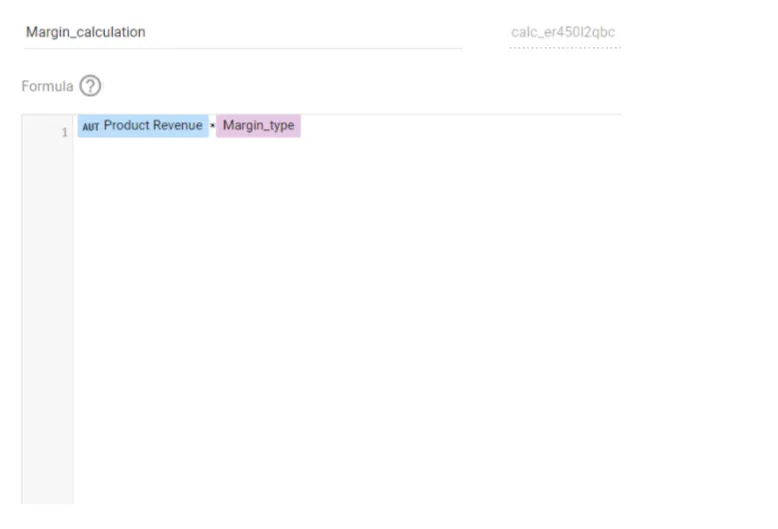
Now it is time to use this parameter in a custom calculated field. For simplicity we decided on a simple calculation in which we just multiply revenue by the selected margin. Our new field, “margin_calculation”, then looks like this:
Third Variant
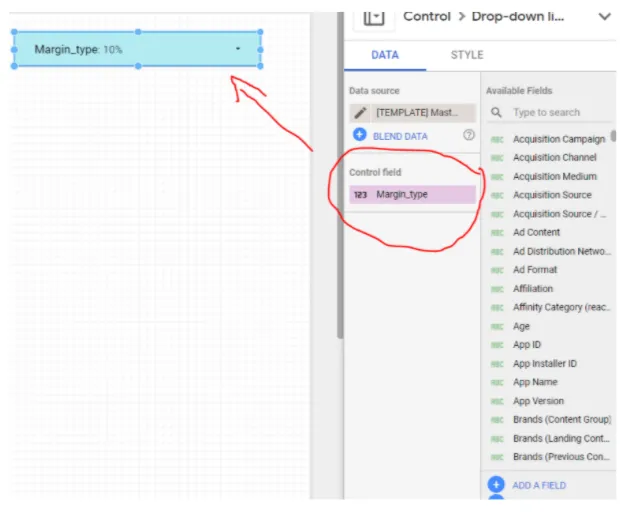
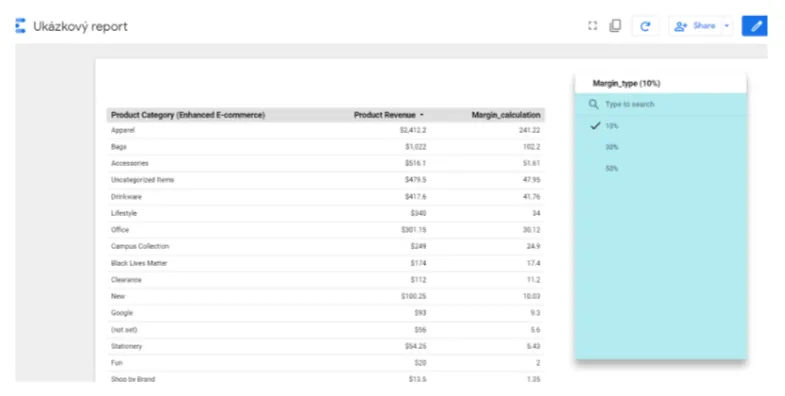
Finally, we need to use our new parameter in the report. Our sample report contains a simple “product category” table, where we see “product revenue” and our new field “margin_calculation”. To the table we also add a simple filter in which we use our new parameter as the “control field”. The user can then simply choose which parameter value to use and see how the resulting margin of individual product categories changes. Looker Studio then substitutes this value into the calculation in which the parameter is used.
The sample report can then look like this:
Please take this example as an illustration. We are aware that it is not exactly a usable procedure, but for demonstration it seemed the easiest to understand. Parameters of course have many other uses, and we will be happy to tell you something about them in one of our next articles.
Be sure to follow our blog! If any other new features appear in Looker Studio, we will let you know right away.