

Last year (2023), thanks to the cooperation of Archetix, Measure Design and Shoptet we managed to prepare a basic form of measurement into GA4 using gtag, which you can already switch on in the Shoptet administration under Connections > Google.
So there is no need to be afraid, we will manage setting up GA4 measurement on Shoptet together.
This is where you enter the measurement ID of your property from the GA4 platform.
How and Where Do I Find the Measurement ID?
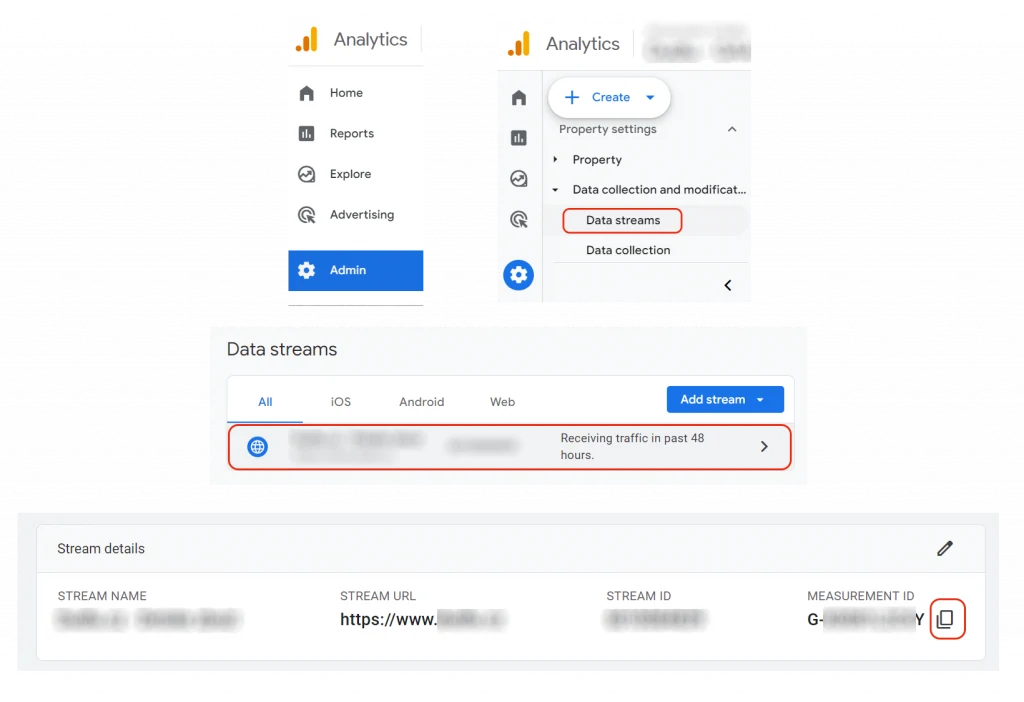
If you do not know how to find it, after signing in to Google Analytics 4 choose the cog icon Admin in the menu at the bottom left, then find the section Data collection and modification > Data streams. Click to choose the Data stream that belongs to your Shoptet e-shop and on the far right you will find its measurement ID, which you can easily copy with the copy icon on the right. You then enter this ID in the Shoptet administration and your GA4 measurement is connected!
How Long Until I See My Data in GA4?
Data from the gtag implementation starts being collected in GA4 immediately and you will see it there about 48 hours after switching it on, or you can watch the data for the last 30 minutes in the Real-time report.
Do You Have Measurement into Universal Analytics Switched On in the Administration?
If you still have Universal Analytics connected in the administration, we recommend saving the measurement ID of your GA4 account, for example in a notepad, then deleting all the connections (both UA and GA4) and afterwards only adding (or re-adding) the connection for measurement into Google Analytics 4. Deleting only the UA connection unfortunately does not currently delete the connection of gtag to UA. After successfully deleting both connections, simply add the Google Analytics 4 connection again and copy your measurement ID there. This will let you track e-commerce on your e-shop into Google Analytics 4 only, without needlessly slowing down the loading of the page code that no longer measures anything.
Which Events Does This Connection (gtag) Let You Track?
page_view
The basic event that carries information about which page the user visited – which language they have chosen, which currency, and possibly the type of page – whether it is a category, a product detail, the homepage or, for example, your blog article.
search
This event tells you which keywords the user searched for on your pages, so that you can, for example, find out about customer interest in goods that are still missing from your offer.
login
This event tracks a user logging in to their account and which login method they chose (for example, if you support logging in with a Google account, Facebook and so on).
sign_up
This event collects data about the registration of new users, so you can easily find out how many new users registered with you in the last period.
generate_lead
This event carries information about a new user signing up to, for example, a newsletter.
view_item_list
An event that is most often sent when a product category page or a page with several products loads. It carries information about which products, from which product list, were displayed to the user.
view_item
This event carries information about an individual product that the user views, most often on the product detail. It thus captures the user's interest in the product even if they do not finally put it in the basket.
add_to_cart
This event monitors which goods the customer has put in their basket. It records the ID, name, brand, price, variant (for different clothing sizes or different pack sizes of the same product), the product's category and subcategory, its quantity or, for example, a discount code (coupon).
remove_from_cart
This event records the removal of any product from the basket together with the removed quantity. You thus find out that the user decided not to buy some goods.
begin_checkout
This event records when the user moves from the basket to the next step of the order – the shipping and payment section. From this event you learn which products stayed in the basket and that the user showed interest in completing the order.
add_shipping_info
This event, sent on the page where contact details are filled in, records what type of shipping the customer chose. It also carries information about the goods in the basket – so you can monitor which shipping method your customers prefer, and you can also compare the share of orders with free shipping on a larger purchase and the number of orders belonging to a particular shipping option.
add_payment_info
This event, sent on the contact details page, carries information about the selected payment method.
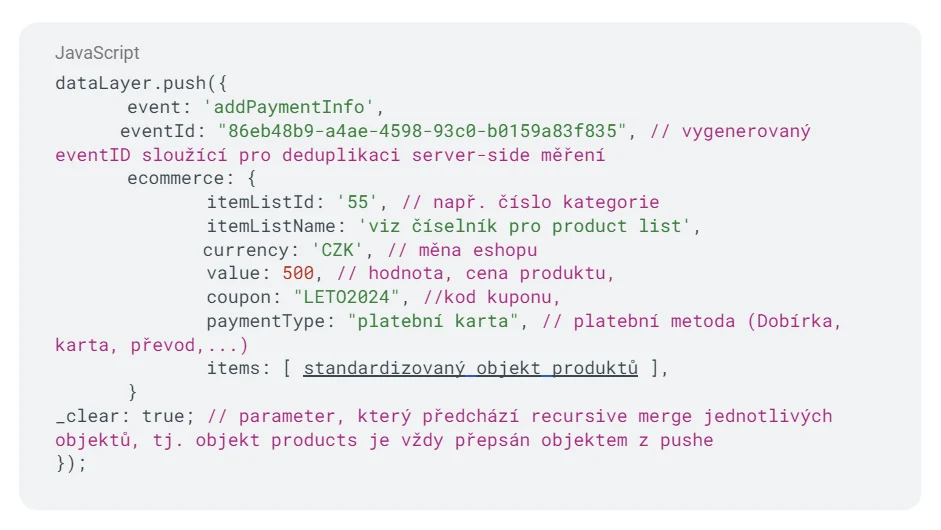
An example of the add_payment_info event code as you will find it in the page source
checkout_progress
This event gives you information about the ordered goods and the selected payment and shipping method. Thanks to it you learn that the user has got to the third step of the order. That is useful in case they do not complete the order. This information can be used in a remarketing strategy. It can nudge the user to finish the purchase, whether by email, if they are a registered user, or with remarketing ad campaigns for the products they have in the basket.
purchase
The key event of the whole e-commerce is of course the conversion itself – the purchase. Here you will find all the important data about the order – the transaction ID, basket value, currency, delivery price, tax, shipping and payment method, whether it is a B2B or B2C shop, and all the purchased products.
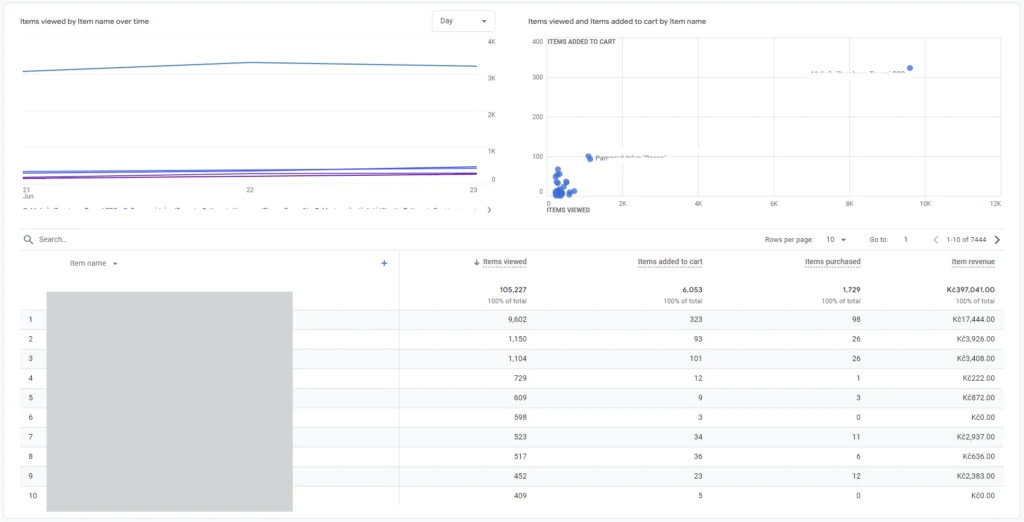
You can find a lot of the information from these e-commerce events in the standard report in GA4. You will find it, for example, in the section Monetisation > E-commerce purchases. For each item you will find out how many users viewed it, how many of them added it to the basket, how many were actually sold in the end and how much revenue they brought you.
The gtag Connection Is Available to GTM Users in the Data Layer
Because of the way gtag is implemented, all of this data is also available in the data layer in the form of events. You can therefore use it even if you measure with Google Tag Manager, so that you can send this data to advertising systems. You can send it to Meta, Google Ads, TikTok, Sklik or Zboží, Bing's UET, Pinterest and others.
What to Watch Out for in GTM!
What you need to watch out for for the time being is that, together with the data from gtag, events also appear in the data layer. In their original form these events are sent to the data layer with the dataLayer.push command outside the gtag implementation. If you tag in GTM, you need to keep an eye on which event you trigger your tags on. Tags should not be fired repeatedly (the events have the same names). I would also point out that the original push to the data layer and the gtag push do not carry data in the same format and scope. They are often placed in different objects within the data layer. Work is currently under way on an event parameter that will clearly distinguish the gtag implementation from the events of the original data layer.
User Consent to the Use of Cookies
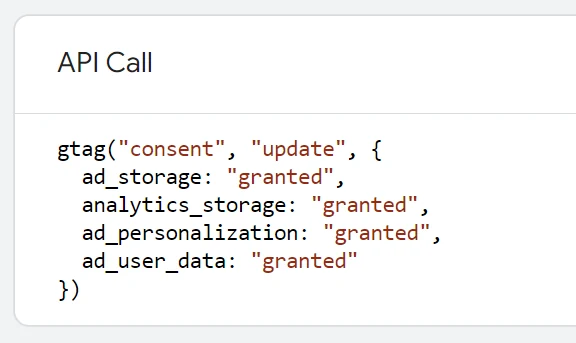
The gtag implementation also covered sending consents within the Shoptet cookie banner. They are sent in their default form right after the page loads. If no earlier consent is available, the wait_for_update parameter is sent, which waits for consent to be granted and serves as the default value if the user has not expressed a choice.
When the user grants consent, the following parameters are sent:
analytics_storage if the user has consented to the storage of cookies needed for analytics measurement
ad_storage if the user has consented to the storage of cookies needed for marketing purposes.
If the user changes their consent, their new choice is delivered with the consents update event, which resets the consents to the current value.
You can get to the documentation of the current version of the gtag implementation through this link.
Are You Solving Measurement Tailored to Your Needs?
If you are interested in a consultation, we will be happy to get in touch and discuss how to set up GA4 measurement on Shoptet and much more! For example, setting up measurement into advertising systems through Google Tag Manager – whether for remarketing purposes or to teach advertising pixels to target the right audience of your customers. Do not hesitate to get in touch.
Thank you for your time!